Quotations

A quotation (or estimate) is sent to a customer before confirming a sale. Once approved, it can be converted into an invoice in one click.
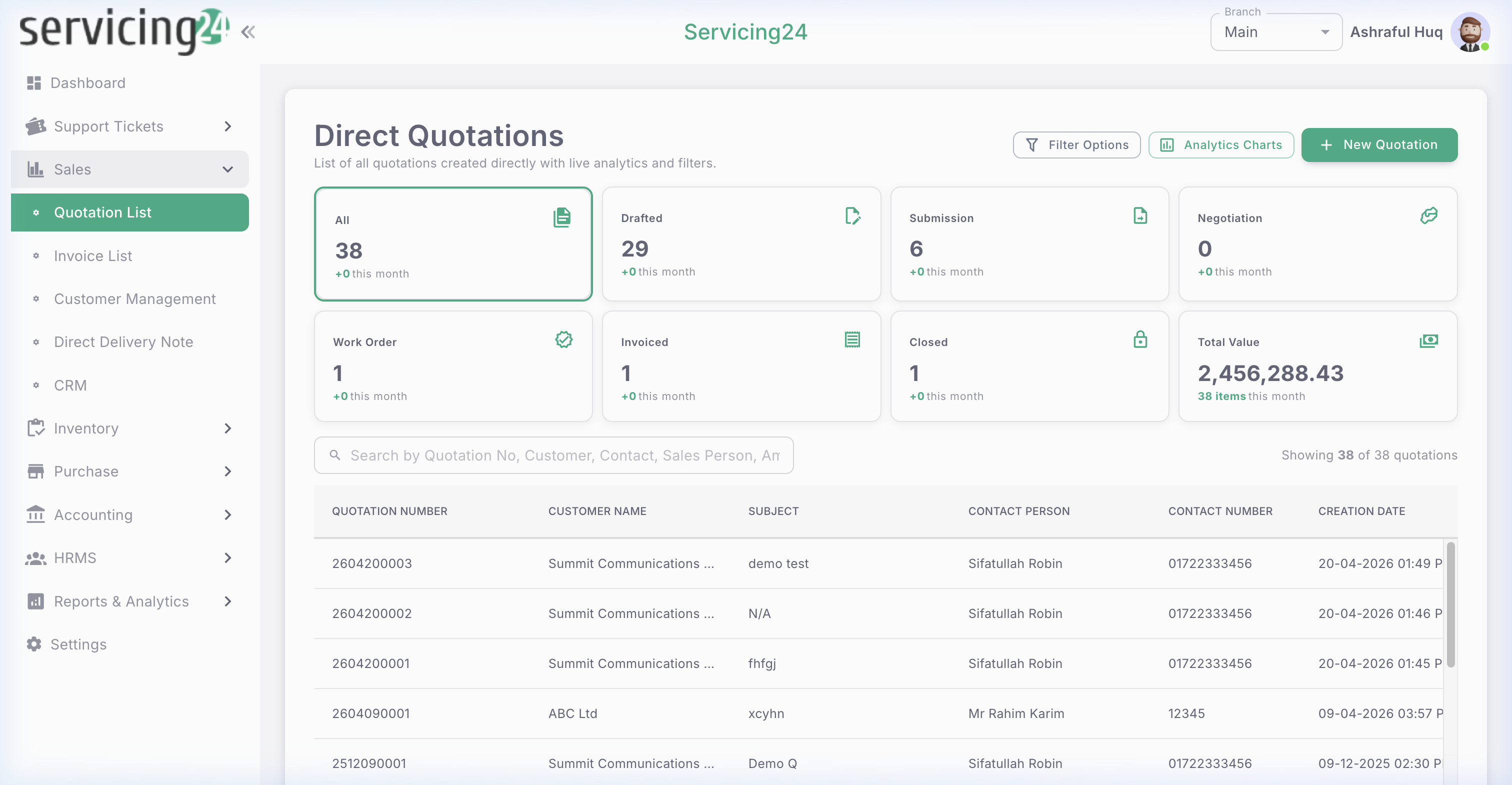
app.servicing24.com/sales/direct-quotation
Quotation List โ€” all quotations with status, customer, and total amount
๐Ÿ“ธ Quotation List โ€” all quotations with status, customer, and total amount
1
Go to Sales โ†’ Quotation List
Navigate to Sales in the sidebar, then click Quotation List.
2
Click 'New Quotation'
The quotation form opens. Select the customer, date, and validity period.
3
Add line items
Add products or services from the item catalog. Set quantity, unit price, and any applicable discounts.
4
Apply Tax / VAT
Select the applicable tax rate. The system calculates the tax amount and grand total automatically.
5
Add notes or terms
Add any special conditions, payment terms, or notes for the customer at the bottom of the quotation.
6
Save and Share
Save the quotation. You can print it as a PDF or send it directly to the customer via email.
7
Convert to Invoice
Once the customer approves, open the quotation and click 'Convert to Invoice'. All details carry over automatically.
๐Ÿ’ก
TipQuotations have a status: Draft โ†’ Sent โ†’ Approved โ†’ Converted. Track where each quotation is in the process at a glance.

Invoices

Invoices are the official billing documents sent to customers. Servicing24 supports both quotation-converted invoices and direct invoices.
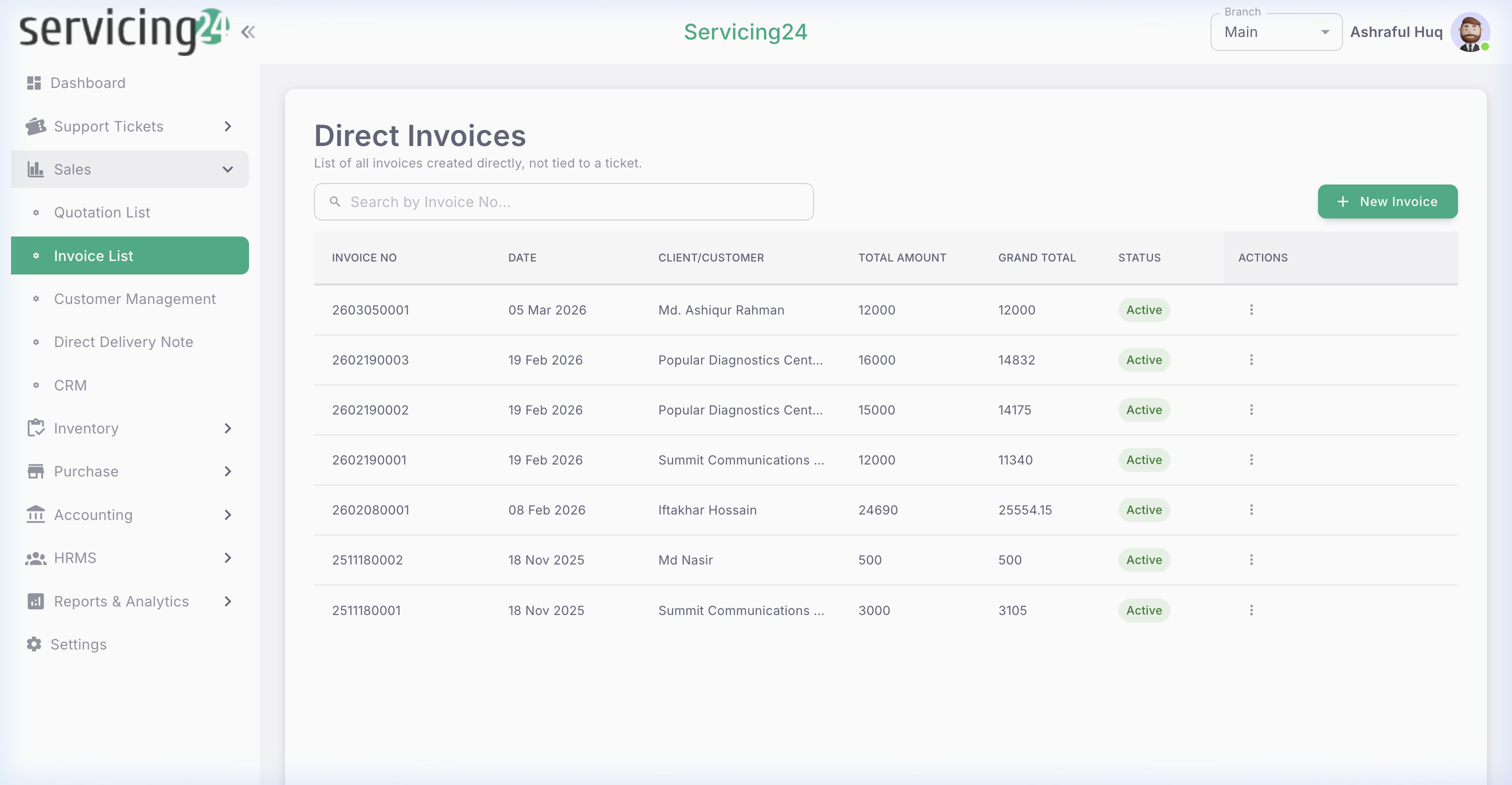
app.servicing24.com/sales/direct-invoice
Invoice List โ€” showing invoice number, customer, amount, due date, and payment status
๐Ÿ“ธ Invoice List โ€” showing invoice number, customer, amount, due date, and payment status
1
Go to Sales โ†’ Invoice List
See all invoices across all customers. Filter by Paid, Unpaid, Overdue, or Draft status.
2
Create a Direct Invoice
Click 'New Invoice' to create an invoice without a prior quotation. Fill customer, items, and amounts.
3
Record a payment
When a customer pays, open the invoice and click 'Record Payment'. Enter amount, date, and payment method.
4
Send invoice to customer
Click 'Send Invoice' to email the PDF invoice directly to the customer's registered email.
5
Print or download PDF
Use the Print button to generate a professional PDF invoice for physical records.
โ„น๏ธ
NotePaid invoices are automatically reflected in Accounts Receivable and trigger the corresponding accounting journal entry.

Customer Management

Maintain a complete database of your customers โ€” contact information, purchase history, outstanding balances, and linked tickets.
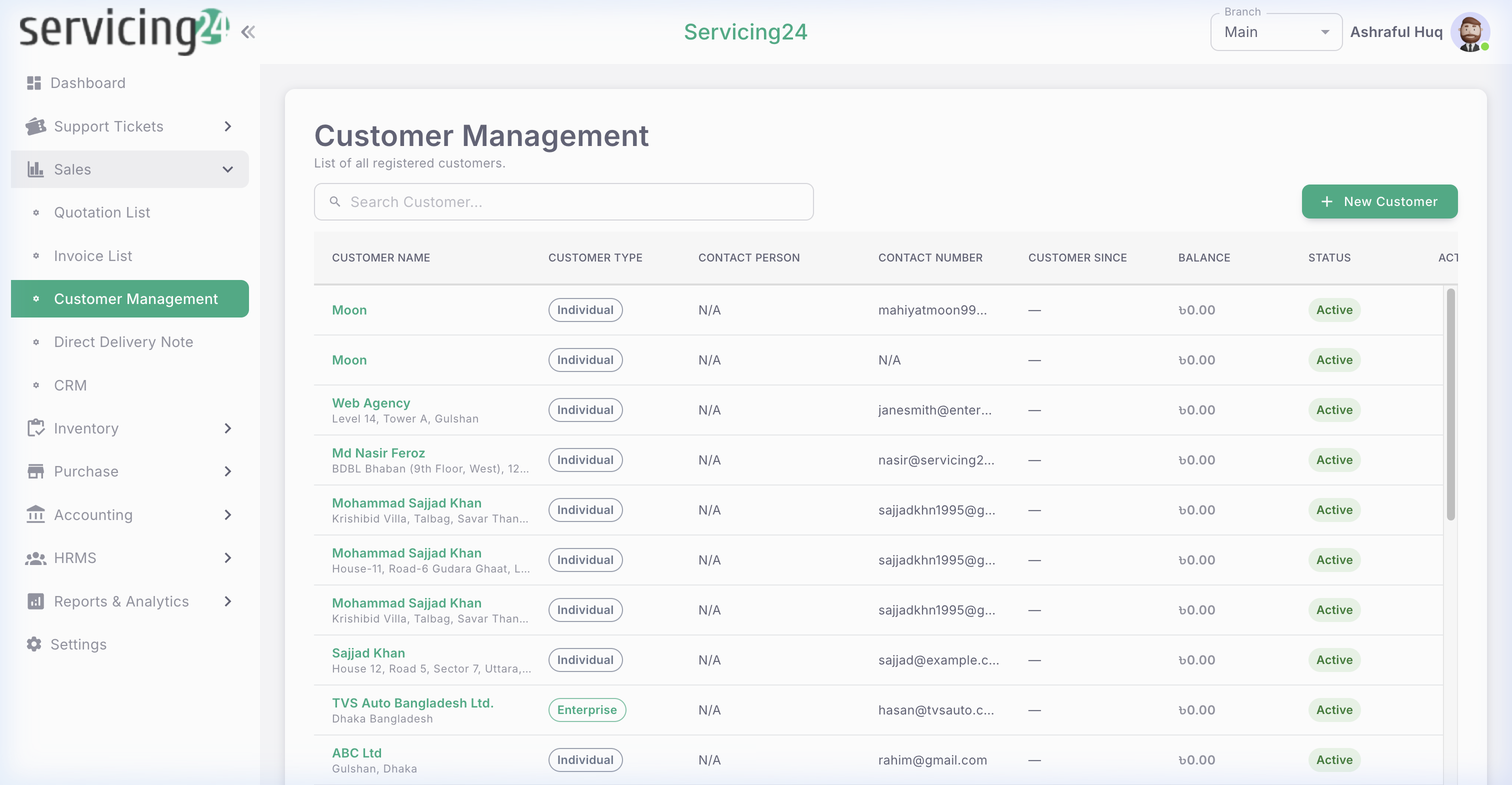
app.servicing24.com/sales/customer-management
Customer Management โ€” searchable list with all customer details
๐Ÿ“ธ Customer Management โ€” searchable list with all customer details
1
Go to Sales โ†’ Customer Management
View all registered customers with their contact info, total sales, and outstanding amount.
2
Add a new customer
Click 'Add Customer'. Fill in name, phone, email, address, and any custom reference number.
3
View customer profile
Click any customer to see their full profile: all tickets, quotations, invoices, and payment history in one place.
4
Edit customer details
Click Edit to update contact information, billing address, or credit limit.

Direct Delivery Note

For sales that involve physical delivery of goods (not ticket-based), use Direct Delivery Notes to document and track the handover.

1
Go to Sales โ†’ Direct Delivery Note
View all direct delivery notes or create a new one.
2
Create a delivery note
Select the related invoice, customer, and list the items being delivered with quantities.
3
Print and get signature
Print the delivery note and have the customer sign it as proof of receipt.
4
Mark as Delivered
Update the status to Delivered once the customer has received the goods.

AMC Contracts

Annual Maintenance Contracts (AMC) allow you to manage long-term service agreements with customers โ€” tracking covered items, renewal dates, and service visits.

1
Go to Sales โ†’ AMC
View all active and expired AMC contracts.
2
Create a new AMC
Select the customer, contract period (start/end date), covered products/devices, and service terms.
3
Link tickets to AMC
When creating a ticket for an AMC customer, the system automatically links the ticket to their active contract.
4
Renew AMC
Before the contract expires, click Renew to extend it. The system sends an automatic renewal reminder.
โ„น๏ธ
NoteAMC is available for select organization plans. Contact your administrator if you don't see it in your sidebar.

CRM โ€” Leads & Deals

The built-in CRM helps your sales team manage potential customers (leads) and track deals through the pipeline to closure.
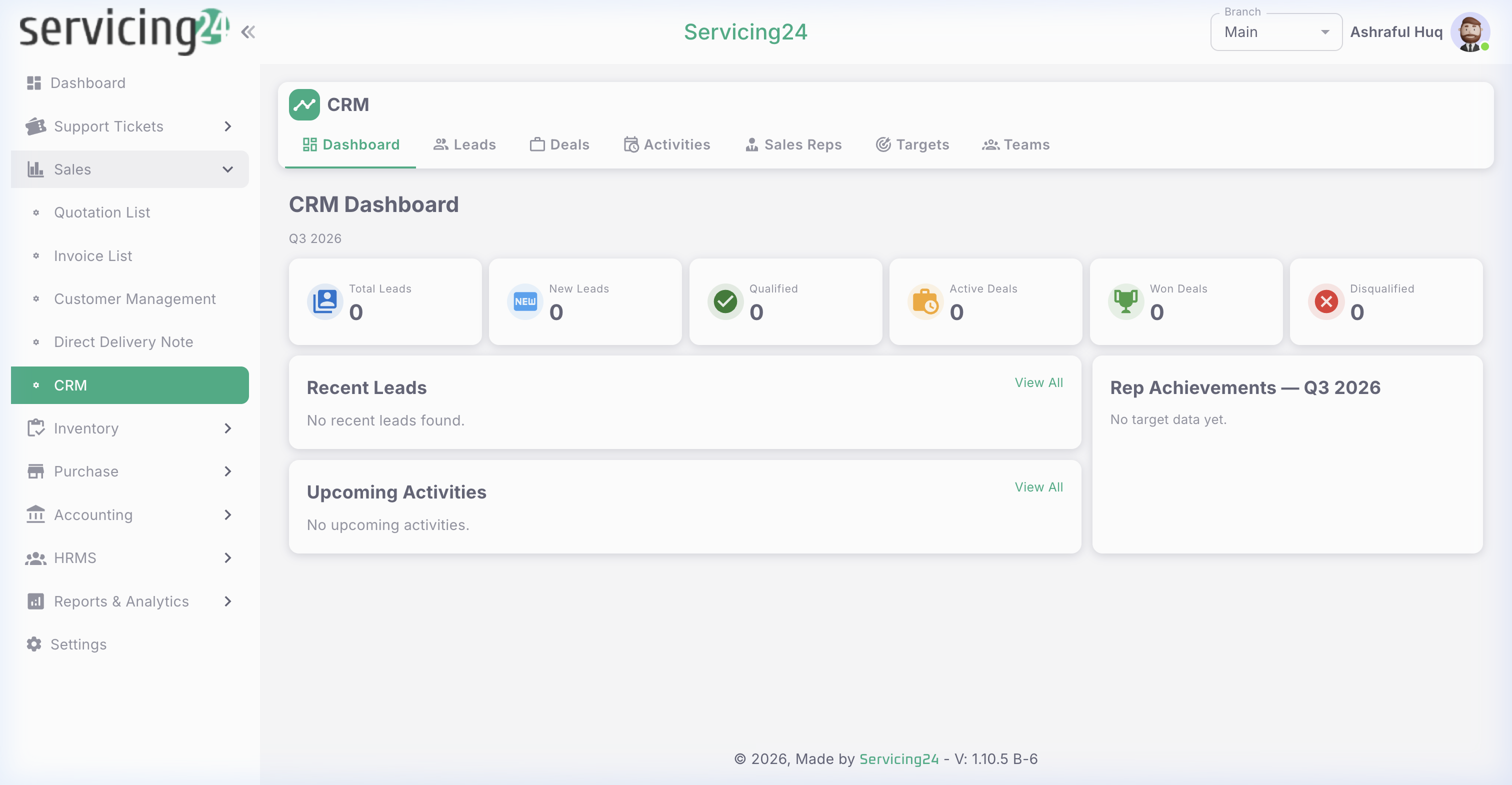
app.servicing24.com/crm/dashboard
CRM Dashboard โ€” leads and deals pipeline overview
๐Ÿ“ธ CRM Dashboard โ€” leads and deals pipeline overview
1
Go to Sales โ†’ CRM
The CRM dashboard shows a summary of leads, deals in progress, and conversion metrics.
2
Add a new Lead
Click 'Add Lead'. Enter the prospect's name, contact, source (e.g., WhatsApp, Website, Referral), and initial notes.
3
Qualify and convert to Deal
Once a lead shows interest, convert it to a Deal. Set the deal value, expected close date, and assigned sales rep.
4
Move through pipeline stages
Drag and drop deals through stages: New โ†’ Contacted โ†’ Proposal Sent โ†’ Negotiation โ†’ Closed Won / Closed Lost.
5
Log activities
Record calls, emails, and meetings as activities under each lead or deal to maintain a full interaction history.