🛒 Purchase
Purchase
Manage the full procurement cycle — purchase orders, goods receipt, returns, and supplier management.
Purchase Orders
A Purchase Order (PO) is a formal document sent to a supplier to request goods or services. It documents what you're buying, at what price, and when.
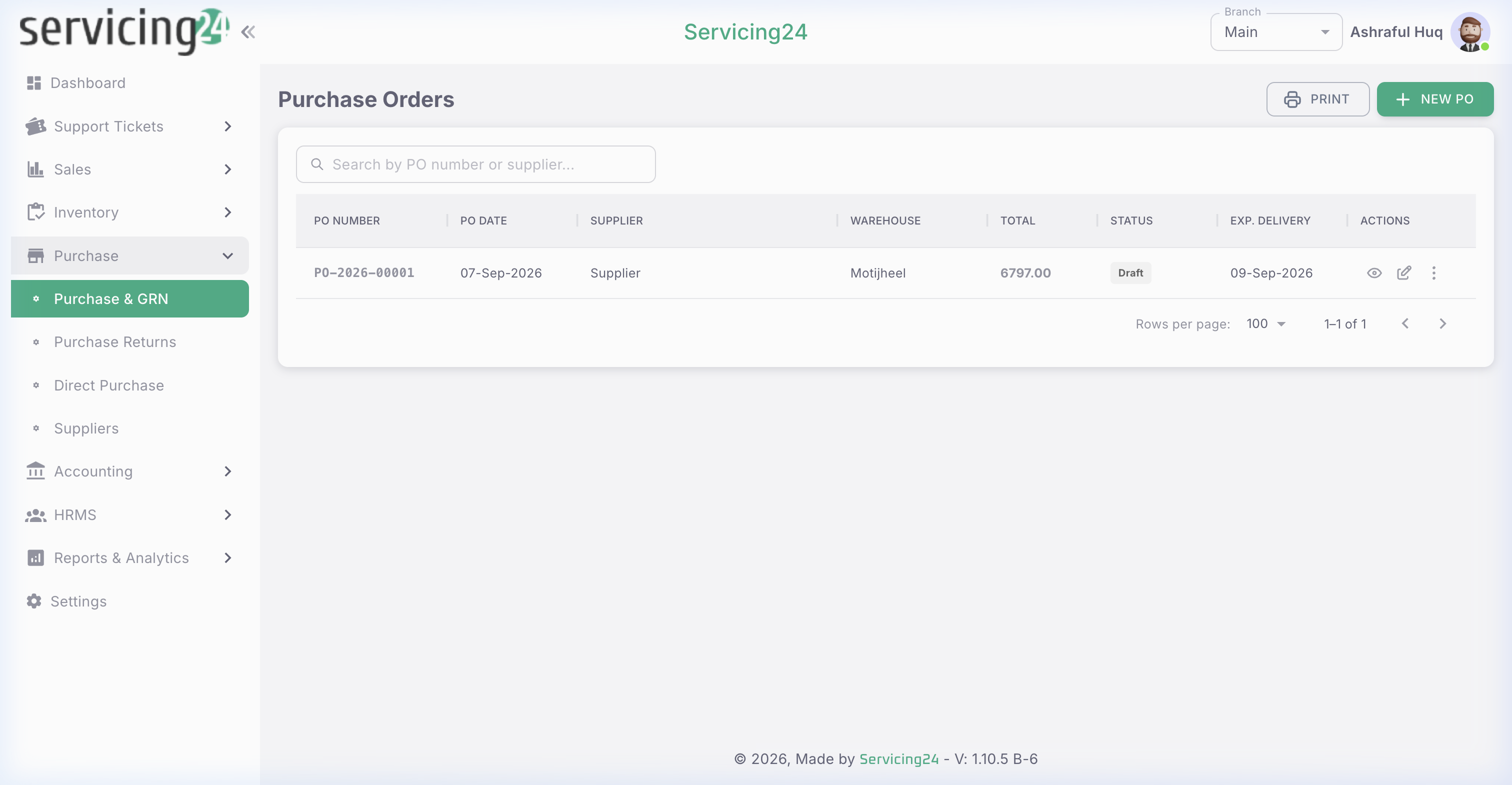
📸 Purchase Orders list — all POs with supplier, status, and total amount
1
Go to Purchase → Purchase & GRN
View all purchase orders. Click 'New Purchase Order' to create one.
2
Select the Supplier
Search for and select the supplier. Their default payment terms and address auto-fill.
3
Add items to the PO
Add the items you want to purchase with quantities and agreed unit prices.
4
Set delivery date and branch
Specify the expected delivery date and which branch should receive the goods.
5
Submit the PO
Save and submit. The PO is now in 'Pending' status awaiting supplier confirmation and delivery.
6
Print and send to supplier
Print the PO as a PDF and share it with the supplier via email or in person.
TipPOs can be set to require approval before submission. Enable this in Settings → Approval Workflows.
Goods Received Note (GRN)
When goods arrive from a supplier, create a GRN to record the actual quantities received. This automatically updates your stock.
1
Open the Purchase Order
Find the PO for which goods have arrived and open it.
2
Click 'Receive Goods'
This opens the GRN form, pre-populated with the PO items.
3
Enter received quantities
For each item, enter the actual quantity received. This may differ from the ordered quantity if there are shortages or damages.
4
Note any discrepancies
If quantities don't match or items are damaged, add notes documenting the issue for supplier follow-up.
5
Submit the GRN
Click Submit. Stock is immediately added to the selected branch and the PO status updates to 'Partially Received' or 'Fully Received'.
NoteGRN automatically creates an Accounts Payable entry for the received goods value, linked to the supplier's account.
Purchase Returns
Return goods to a supplier that are defective, wrong, or excess using a Purchase Return document.
1
Go to Purchase → Purchase Returns
View all returns or create a new one.
2
Link to original GRN or PO
Select the original purchase record this return is related to.
3
Add items to return
Select the items and quantities being returned, and provide a reason (defective, wrong item, excess).
4
Submit the return
Stock is deducted from your inventory and a credit note is created against the supplier's AP account.
Direct Purchase
For small, ad-hoc purchases that don't require a formal PO process, use Direct Purchase to quickly record a purchase and update stock in one step.
1
Go to Purchase → Direct Purchase
Click 'New Direct Purchase'.
2
Select supplier and items
Choose the supplier and add the purchased items with quantities and prices.
3
Submit
Stock is immediately added and an AP entry is created. No PO workflow is required.
WarningDirect Purchase bypasses the approval workflow. Use it only for small, pre-approved purchases.
Suppliers
Maintain a complete supplier directory with contact information, payment terms, and purchase history.
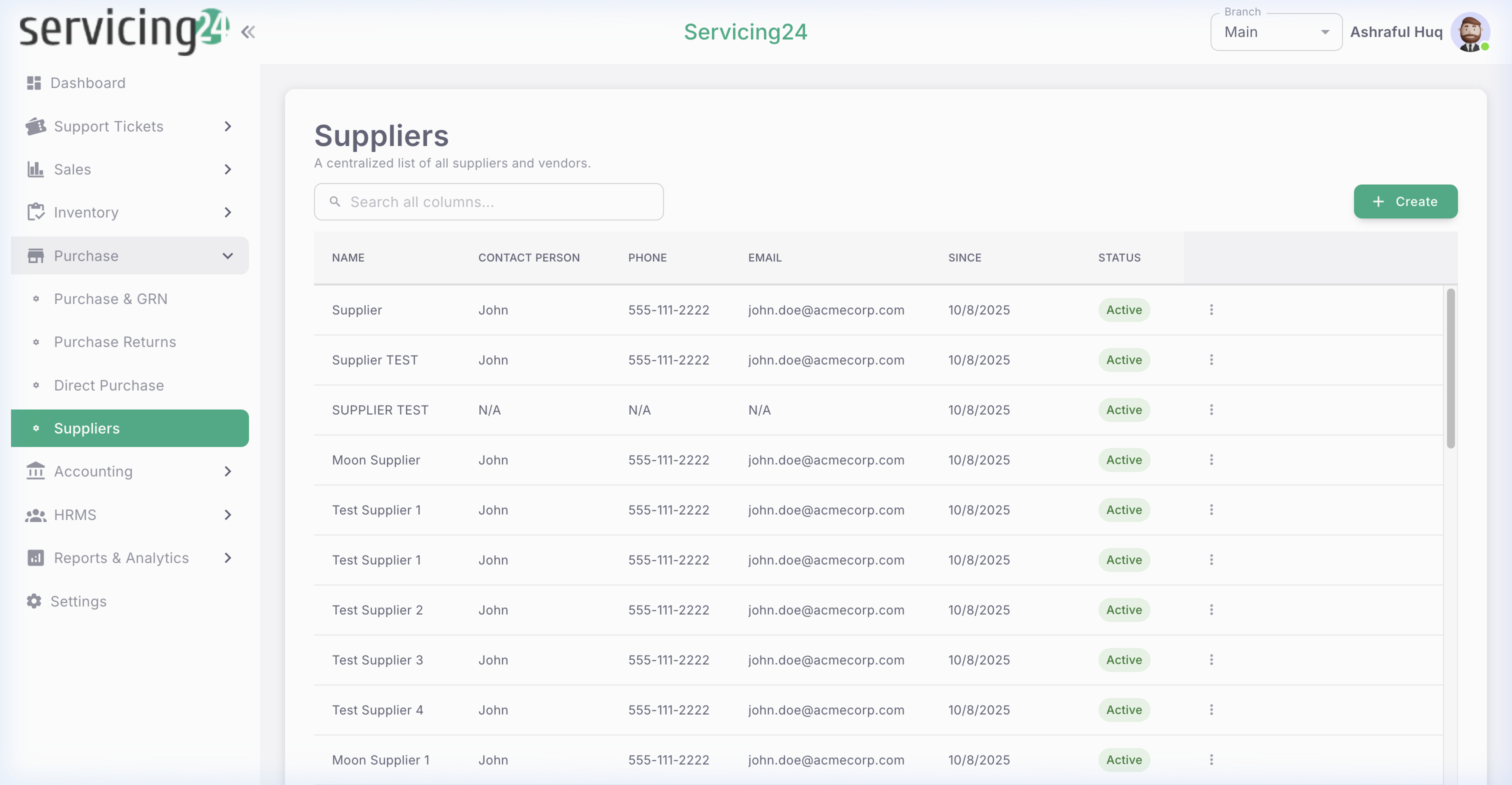
📸 Supplier list — all vendors with contact info and outstanding balances
1
Go to Purchase → Suppliers
View all registered suppliers.
2
Add a new supplier
Click 'Add Supplier'. Fill in: Company Name, Contact Person, Phone, Email, Address, Payment Terms, and Tax/VAT Number.
3
View supplier profile
Click any supplier to see their complete purchase history, outstanding payables, and contact details.
4
Track outstanding payables
The supplier profile shows the total amount owed and any overdue payments, helping you manage cash flow.