👥 HRMS
HRMS — Human Resource Management
Track employee attendance and manage leave requests with a simple, streamlined workflow.
Attendance
The Attendance module lets managers mark and review daily attendance for all employees.
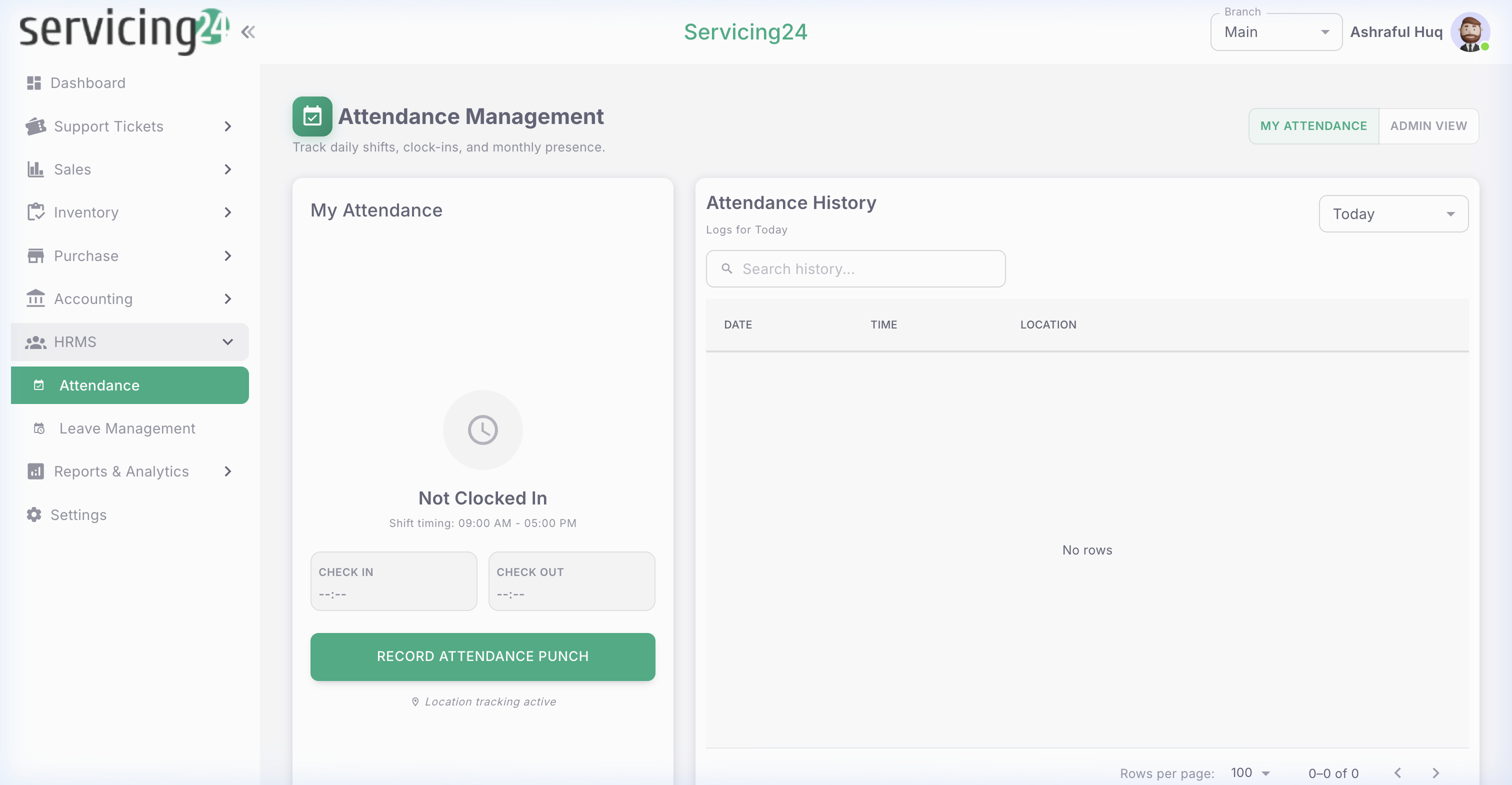
📸 Attendance — daily attendance records for all employees
1
Go to HRMS → Attendance
The attendance page shows the current month's attendance for all employees in a calendar grid.
2
Mark attendance
Select a date and mark each employee as Present, Absent, Half Day, or On Leave. You can do this in bulk for the whole team.
3
Add check-in/out times
If you track working hours, enter check-in and check-out times for each employee.
4
View attendance summary
Switch to the Summary tab to see monthly totals: total present days, absences, half days, and overtime for each employee.
5
Export attendance report
Export the monthly attendance to Excel for payroll processing or HR records.
TipUse the bulk attendance feature to quickly mark all employees as present, then individually correct the exceptions.
Attendance Status Types
P
PresentA
AbsentH
Half DayL
On LeaveO
OvertimeH
HolidayLeave Management
Employees can apply for leave and track their leave balance directly in Servicing24.
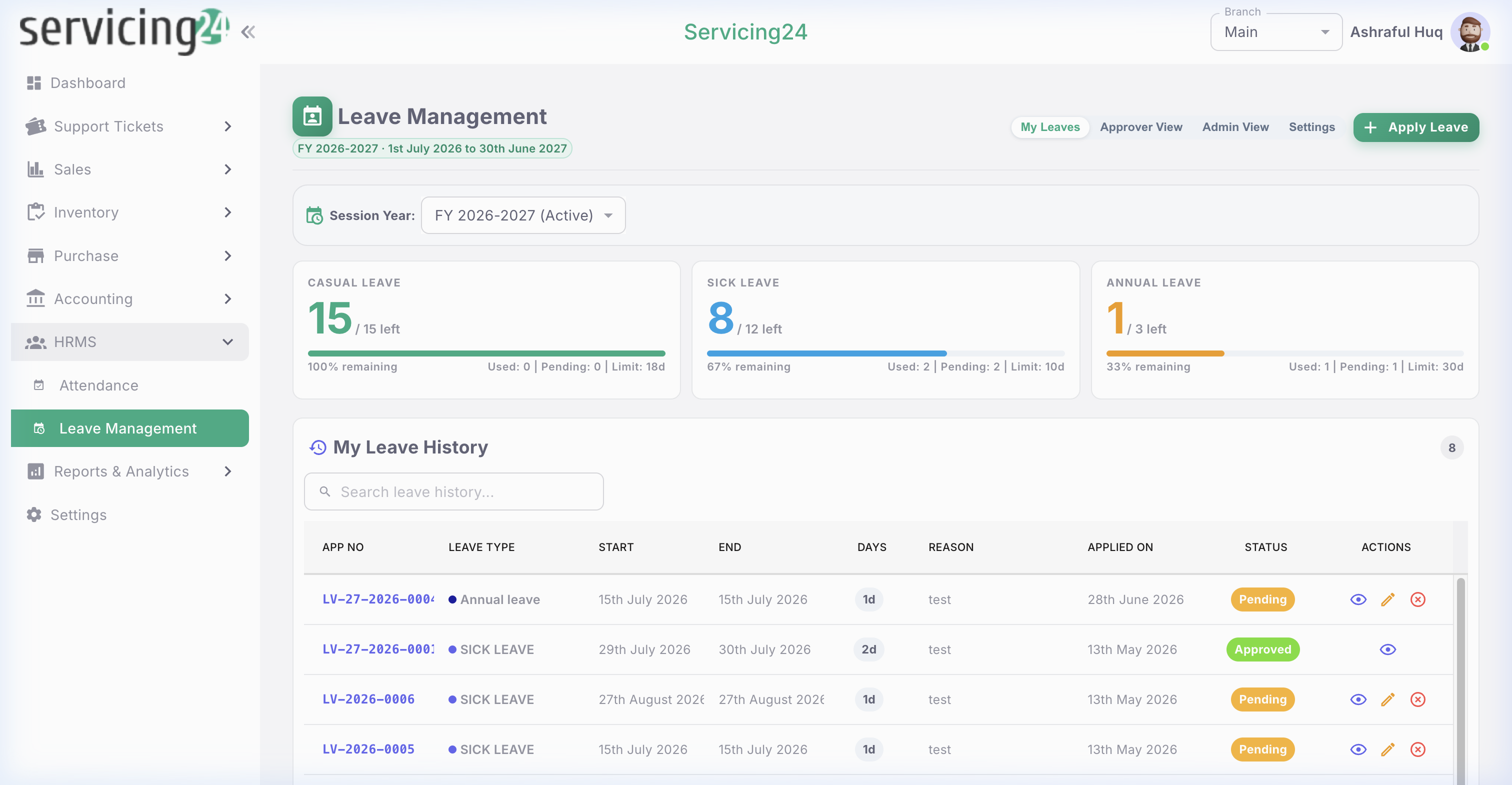
📸 Leave Management — leave requests and balance overview
1
Go to HRMS → Leave Management
View your leave balance, pending requests, and history.
2
Apply for leave
Click 'Apply Leave'. Select the leave type (Annual, Sick, Casual, Unpaid), start date, end date, and reason.
3
Attach medical certificate (if sick leave)
For sick leave, you can attach a scanned medical certificate as supporting documentation.
4
Submit the application
Submit your application. Your manager will receive a notification to approve or reject it.
5
Track your application status
The application shows its current status: Pending, Approved, Rejected. Once approved, your leave balance is automatically deducted.
| Leave Type | Default Allocation | Carry Forward | Requires Approval |
|---|---|---|---|
| Annual Leave | 21 days / year | Yes (max 10 days) | Yes |
| Sick Leave | 15 days / year | No | Yes |
| Casual Leave | 7 days / year | No | Yes |
| Unpaid Leave | Unlimited | N/A | Yes |
Note: Leave allocations are configurable by your HR administrator in Settings.
Leave Approval Workflow
Managers and HR administrators can approve or reject leave applications submitted by employees.
1
Receive notification
When an employee applies for leave, the approving manager receives an in-app notification and email.
2
Go to HRMS → Leave Management
Switch to the 'Pending Approvals' tab to see all applications awaiting your action.
3
Review the application
Check the leave type, dates, reason, and the employee's remaining leave balance.
4
Approve or Reject
Click Approve to grant the leave, or Reject (with a reason) to decline. The employee is notified immediately.
5
Approved leave reflects in attendance
Approved leave days automatically appear as 'L' (On Leave) in the employee's attendance record for those dates.
NoteSuper Admins can configure leave types, allocations, and approval chains in Settings → HR Configuration.
On this page