📊 Dashboard
Dashboard
The Dashboard is your command center — get a real-time overview of your business performance at a glance.
Dashboard Overview
After logging in, you land on the Dashboard. It displays key metrics for your organization, including ticket statistics, sales figures, and operational summaries.
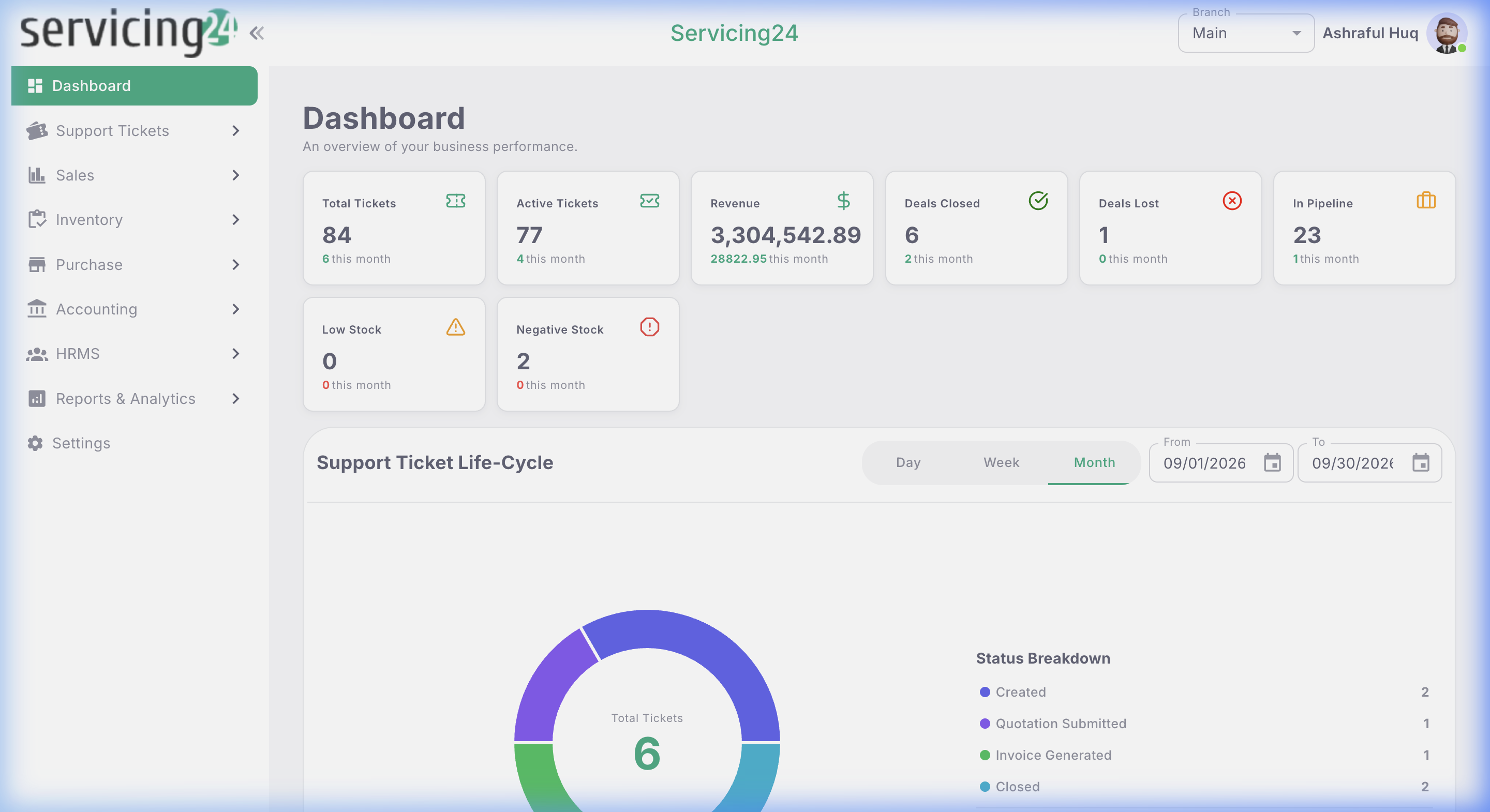
📸 Servicing24 Dashboard — your real-time business overview
KPI Widgets
The dashboard is divided into metric cards (KPI widgets) that summarize key data points. Each widget shows the current value and often a comparison to the previous period.
🎫
Total Tickets
Total support tickets in the selected period. Click to jump to the ticket list filtered by that status.
🔴
Open Tickets
Tickets that are currently open and awaiting resolution. High numbers need immediate attention.
✅
Resolved Tickets
Tickets successfully resolved in the period. Measures team productivity.
💰
Total Sales
Total invoiced sales value in the selected period.
📦
Low Stock Alerts
Items that have fallen below their minimum stock threshold.
⏰
Pending Approvals
Items waiting for approval — invoices, expenses, or leave requests.
Date Filters
All dashboard metrics respond to the date range filter at the top of the page. Use it to analyze performance for any time period.
1
Locate the date filter
The date picker is in the top-right area of the dashboard header.
2
Select a preset range
Choose from quick presets: Today, This Week, This Month, Last 30 Days, This Quarter, or This Year.
3
Set a custom range
Click 'Custom Range' to pick specific start and end dates using the calendar picker.
4
Dashboard updates automatically
All KPI widgets and charts refresh immediately when you change the date range.
TipThe default date range is 'This Month'. Your preferred range is remembered per browser session.
Quick Actions
The dashboard also provides quick action shortcuts so you can jump to common tasks without navigating through the sidebar.
🎫 Create TicketInstantly open the Create Support Ticket form.
💰 New QuotationStart a new sales quotation for a customer.
🧾 New InvoiceCreate a new invoice directly from the dashboard.
📦 Stock CheckJump to the stock summary for a quick inventory overview.